
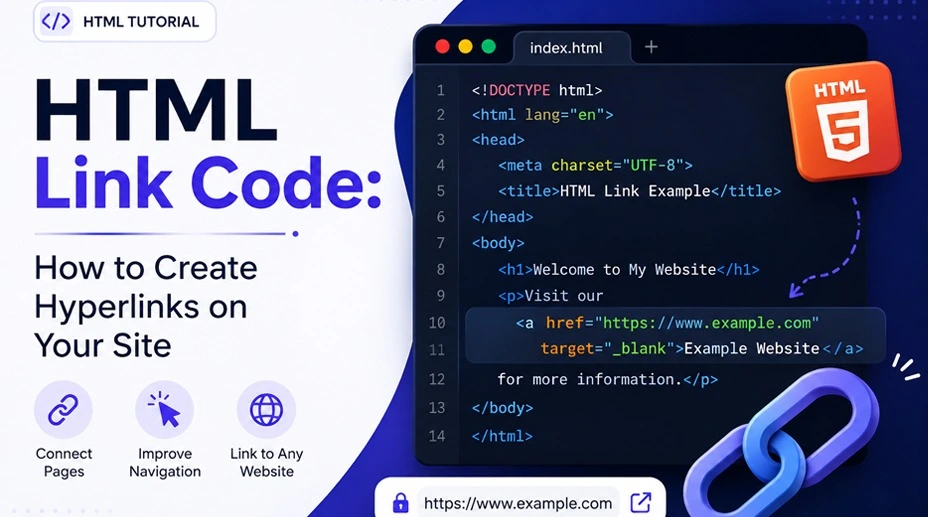
HTML Hyperlink Code: How to Create Clickable Links
HTML links, also called hyperlinks, are an essential part of every website. They help visitors navigate between pages, access resources, download files, and contact businesses. Understanding HTML hyperlink code is also an important part of learning basic HTML and building user-friendly websites.
If you’re learning web development or looking to improve your website’s navigation and SEO, knowing how HTML links work can help you create a better online experience.
In this guide, you’ll learn how to add a link in HTML, understand the HTML href attribute, create different types of links, and follow HTML best practices for accessible and user-friendly websites.
Table of Contents
- What is HTML Hyperlink Code?
- The Parts of HTML Hyperlink Code
- How to Add a Link in HTML
- How to Make Images Clickable Using HTML Hyperlink Code
- Email Links
- Phone Links
- How Does HTML Page Linking Code Work?
- How to Create HTML Button Link Code
- Download Links
- Modern HTML5 Features for Hyperlinks
- HTML Hyperlink Code for SEO
- HTML Best Practices for Hyperlinks
- How to Check HTML Hyperlink Code on Your Website
- Conclusion
- FAQs
What is HTML Hyperlink Code?
HTML hyperlink code is the markup used to create clickable links on a webpage. Links are created with the anchor (<a>) element, which can point visitors to another webpage, a file, an email address, a phone number, or a specific section of the same page.
If you’re learning HTML coding step by step, understanding the <a> element is a useful starting point because links are fundamental to website navigation.
The Parts of HTML Hyperlink Code
HTML hyperlinks use the <a> element together with the href attribute to define the link and its destination.
Here is the basic HTML hyperlink code:
<a href="https://example.com">Visit Example</a>Let’s break it down:
<a>is the anchor element used to create a hyperlink.hrefspecifies the destination of the link.Visit Exampleis the visible, clickable link text.</a>is the closing anchor element.
Basic HTML Tags for Beginners
If you’re learning basic HTML tags for beginners, the <a> element is one of the most useful tags to understand. It works with the href attribute to connect one resource to another.
For example:
<a href="/about-us">About Us</a>This creates a link to the About Us page on the same website.
How to Add a Link in HTML
If you’re learning how to add a link in HTML, start with the anchor (<a>) element and place the destination inside the href attribute. Then add the text or other clickable content between the opening and closing tags.
For example:
<a href="https://example.com">Visit Example</a>This creates a clickable link that allows visitors to navigate to another webpage.
Once you understand this basic structure, you can create different types of hyperlinks depending on your website’s needs.
How to Create Clickable Link HTML Code
Text links are one of the most common forms of clickable link HTML code. They connect visitors to other pages on your website or external resources while making navigation easier.
Instead of using vague phrases such as “Click Here,” use descriptive anchor text that tells visitors what they can expect after clicking the link.
For example:
<a href="/web-development">Web Development Services</a>Descriptive anchor text can also provide search engines with useful context about the linked page.
HTML Link Code for Website Navigation
HTML link code for website navigation helps visitors move between important pages on your website.
Navigation links can connect visitors to:
- Home pages
- About pages
- Service pages
- Product pages
- Blog articles
- Contact pages
- Resource pages
For example:
<nav>
  <a href="/">Home</a>
  <a href="/services">Services</a>
  <a href="/about">About Us</a>
  <a href="/contact">Contact</a>
</nav>
Using clear navigation links helps visitors find important information and move through your website more easily. This is also an important part of creating an effective website design.
How to Make Images Clickable Using HTML Hyperlink Code
Images can also function as hyperlinks by placing an <img> element inside an anchor (<a>) element.
<a href="https://example.com">
  <img src="image.jpg" alt="Description of image">
</a>
In this example:
hrefspecifies the page the image links to.srcspecifies the image file.altprovides alternative text for the image.
For informative images, use concise and descriptive alt text so screen readers can communicate the image’s purpose to users. Search engines can also use alt text to better understand image content.
Decorative images should generally use an empty alt attribute:
<img src="decorative-image.jpg" alt="">Use image links when clicking the image takes visitors to a relevant page or resource.
Email Links
Email links allow visitors to contact you directly without copying and pasting an email address. They use the mailto: protocol inside the href attribute.
<a href="mailto:[email protected]">Email Us</a>Email hyperlinks are commonly used on:
- Contact pages
- Customer support pages
- Business websites
- Portfolio websites
- Service pages
You can also prefill an email subject:
<a href="mailto:[email protected]?subject=Website%20Inquiry">
  Email Us
</a>
Phone Links
Phone links use the tel: protocol inside the href attribute, allowing visitors to call a business with a single tap on supported devices.
<a href="tel:+15551234567">Call Us</a>Phone links are particularly useful for mobile users and can improve the user experience on:
- Local business websites
- Healthcare websites
- Restaurants
- Service providers
- Emergency contact pages
When appropriate, use the international dialing code so the phone link works correctly for users in different regions.
How Does HTML Page Linking Code Work?
HTML page linking code can allow visitors to jump directly to a specific section of a webpage without scrolling through the entire page.
To create a jump link, add an id to the destination element and reference that ID with the # symbol.
For example:
<a href="#services">View Our Services</a>

<h2 id="services">Our Services</h2>
When visitors click “View Our Services,” the browser moves to the section with the matching id.
Jump links are useful on:
- Long tutorials
- Knowledge base articles
- Documentation
- Product pages
- FAQs
- Tables of contents
Best Practices for Anchor Links
- Use descriptive IDs.
- Avoid duplicate IDs on the same page.
- Test every jump link.
- Use a “Back to Top” link on long pages when useful.
- Keep section headings clear and descriptive.
How to Create HTML Button Link Code
HTML button link code usually uses a standard anchor (<a>) element styled with CSS so it looks like a button while still functioning as a hyperlink.
For example:
<a href="/contact" class="button">Contact Us</a>You can use CSS to style the link as a button:
.button {
  padding: 10px 20px;
  text-decoration: none;
  border-radius: 5px;
}
Use an anchor (<a>) when the action takes visitors to another page or resource. Use a <button> element when the action performs an operation on the current page, such as submitting a form or opening an interface component.
Tips for Better HTML Button Links
- Use clear, action-oriented text.
- Make buttons easy to tap on mobile devices.
- Maintain sufficient color contrast.
- Include visible hover and focus states.
- Avoid placing too many buttons close together.
Download Links
Download links allow visitors to download files from your website using an anchor (<a>) element with the download attribute.
<a href="/files/guide.pdf" download>Download the Guide</a>They’re commonly used for:
- PDF guides
- Company brochures
- Whitepapers
- Checklists
- Templates
- Product catalogs
- Software downloads
Whenever possible, clearly indicate the file type and size so visitors know what they’re downloading before clicking the link.
Also read: How to Use Claude as a Personal Assistant in Under 10 Minutes
Modern HTML5 Features for Hyperlinks
Modern HTML provides several features and related elements that can make links more useful, accessible, and secure.
Semantic HTML
Semantic HTML elements such as <header>, <nav>, <main>, and <footer> help organize page content and navigation.
For example, navigation links can be placed inside a <nav> element:
<nav>
  <a href="/">Home</a>
  <a href="/services">Services</a>
  <a href="/contact">Contact</a>
</nav>
Accessibility
Accessible links should have descriptive text and should be usable with a keyboard. Links should also have a visible focus state so keyboard users can identify the currently selected link.
For icon-only links, provide an accessible name so screen readers can identify the link’s purpose.
Responsive Navigation
Make sure links and navigation menus work well across desktops, tablets, and smartphones. Touch targets should have enough space for users to interact with comfortably.
Secure Link Handling
When using target="_blank", adding rel="noopener" helps prevent the newly opened page from accessing the original page through window.opener.
Using these modern HTML features and accessibility practices alongside proper HTML hyperlink code creates a more user-friendly website.
HTML Hyperlink Code for SEO
HTML links can also play an important role in website navigation and search engine discovery. When implemented correctly, they also support broader SEO services by helping search engines understand the relationships between pages. Clear internal links help users and search engines understand the relationships between pages.
However, not every HTML element related to links creates a clickable hyperlink. Some elements provide additional information to search engines.
Canonical Tags
Canonical tags help search engines identify the preferred version of a webpage when multiple URLs contain the same or very similar content.
For example:
<link rel="canonical" href="https://example.com/preferred-page">A canonical tag signals which URL you prefer search engines to treat as the primary version. However, it is a signal rather than a guarantee that search engines will select that URL as the canonical version.
Canonical tags can be useful when URL parameters create multiple variations of the same page, such as:
?source=email?sort=price
These parameters can create different URL variations that contain the same or very similar content. A canonical tag can help indicate the preferred URL.
Why Canonical Tags Matter
Canonical tags can help:
- Reduce duplicate-content concerns.
- Consolidate ranking signals toward the preferred URL.
- Help search engines identify the preferred version of a page.
- Keep search results focused on the preferred URL when appropriate.
Hreflang
The hreflang attribute tells search engines about different language or regional versions of a webpage. It is useful for websites that serve users in multiple languages or regions.
For example:
<link rel="alternate" hreflang="en-US" href="https://example.com/en-us">
<link rel="alternate" hreflang="es" href="https://example.com/es">
<link rel="alternate" hreflang="fr" href="https://example.com/fr">
These annotations indicate that the website has different language or regional versions.
Hreflang uses language codes such as:
enfor Englishesfor Spanishfrfor French
It can also use regional codes, such as:
en-USfor English in the United Statesen-GBfor English in the United Kingdom
Use hreflang when your website has different language or regional versions of a page. If your website serves only one language and one regional audience, you generally don’t need hreflang.
HTML Best Practices for Hyperlinks
Following HTML best practices 2026 helps create hyperlinks that are user-friendly, accessible, secure, and easy for search engines to understand.
Correct HTML Hyperlink Code Syntax
Here is the basic syntax for an HTML link:
<a href="https://example.com">Visit Example</a>Keep these basic rules in mind:
- Use both opening
<a>and closing</a>tags. - Use the
hrefattribute to specify the link destination. - Put attribute values inside quotation marks.
- Keep the HTML syntax properly structured and valid.
Anchor Text
Anchor text is the visible, clickable content of a hyperlink. It helps visitors understand where the link will take them and gives search engines additional context about the linked page.
When writing anchor text:
- Use descriptive words that accurately reflect the destination page.
- Keep it concise and relevant.
- Avoid vague phrases such as “click here” when more descriptive text can be used.
- Use keywords naturally when they accurately describe the linked page.
Title Attributes
The title attribute can provide additional information about a hyperlink, but it should not be used as a substitute for descriptive anchor text.
Use it only when it adds genuinely useful information that isn’t already clear from the surrounding content or link text.
ARIA Labels
ARIA attributes can provide an accessible name or additional context when a link’s purpose is not clear from its visible content. They are particularly useful for icon-only links and other interactive elements where descriptive visible text is not available.
Examples include:
- Search icons
- Shopping cart icons
- User profile icons
- Social media icons
- Hamburger navigation menus
When Should You Use the Target Attribute?
The target attribute controls where a hyperlink opens. For example:
<a href="https://example.com" target="_blank" rel="noopener">
  Visit Example
</a>
target="_blank" tells the browser to open the linked resource in a new browsing context, typically a new tab.
Opening a link in a new tab can be useful when visitors need to keep the current page available while accessing another resource. However, it should not be used automatically for every external link.
Consider opening links in a new tab when:
- Visitors may need to keep their current page open.
- The linked resource is an external tool or reference that users may want to consult alongside the current page.
- Opening a new browsing context provides a clear benefit to the user.
Avoid opening links in new tabs unnecessarily because unexpected new tabs can make navigation less predictable.
Understanding the HTML rel Attribute
The rel attribute describes the relationship between the current page and the linked resource. Different rel values can provide security, privacy, or search-related signals.
You don’t need to add a rel value to every link. Use an appropriate value when the relationship or behavior requires it.
Common rel Attribute Values
| Attribute | Purpose |
|---|---|
| sponsored | Identifies paid or sponsored links. |
| ugc | Identifies links in user-generated content. |
| nofollow | Tells search engines not to associate your site with the linked page or follow the link from your site. |
| noopener | Helps prevent the opened page from accessing the original page through window.opener. |
| noreferrer | Prevents the browser from sending referrer information to the linked page. |
Absolute vs. Relative URLs
When creating HTML links, you can use either absolute or relative URLs.
| Absolute URL | Relative URL |
|---|---|
| Includes the full domain and path. | Uses a path relative to the current URL. |
Example: https://example.com/about |
Example: /about |
| Useful when the complete URL is required. | Commonly used for internal website links. |
Partner with Engage Coders for Digital Growth in Atlanta
From web development to SEO, our team delivers user-friendly digital solutions designed to help your Atlanta business grow.
Get Started
How to Check HTML Hyperlink Code on Your Website
Regularly reviewing your HTML hyperlinks helps ensure that links work correctly and provide a good user experience.
You can inspect hyperlinks by:
- Using your browser’s Inspect or developer tools.
- Testing internal and external links manually.
- Running website crawlers to identify broken links.
- Checking redirect chains.
- Reviewing accessibility features such as descriptive anchor text and appropriate ARIA attributes.
Performing routine link audits helps maintain website quality and ensures visitors can navigate your content without encountering broken or outdated links.
Conclusion
Well-structured HTML links do more than connect pages; they improve navigation, support accessibility, and help search engines understand your website. Taking the time to build links correctly creates a better experience for users and contributes to a well-organized, user-friendly website.
At Engage Coders, we believe that strong digital results begin with a solid technical foundation. From website development to SEO, our approach focuses on building websites that are easy to navigate, search-friendly, and designed to support sustainable business growth.
FAQs
Text links, image links, email links, phone links, jump links, button-style links, and download links are some of the most common types of HTML hyperlinks. Each serves a different purpose, from website navigation to user interactions and file downloads.
To create a clickable HTML link, use the <a> (anchor) element and place the destination URL inside the href attribute. Then, add the text or image you want users to click between the opening and closing anchor tags.
The HTML code for a hyperlink uses the <a> element with the href attribute to define the destination. This is the standard method for creating links between webpages, files, email addresses, or sections within the same page.
The anchor (<a>) element creates hyperlinks by wrapping clickable content and using the href attribute to specify where the link should lead. It is used to connect webpages, documents, and other online resources.
The <a> (anchor) element is used to create links in HTML. Combined with the href attribute, it lets you add internal links, external links, email links, and other types of hyperlinks to your webpage.
To link one HTML page to another, use an anchor (<a>) element with the destination page inside the href attribute. You can point to another page on your website using a relative URL or to an external website using an absolute URL.


